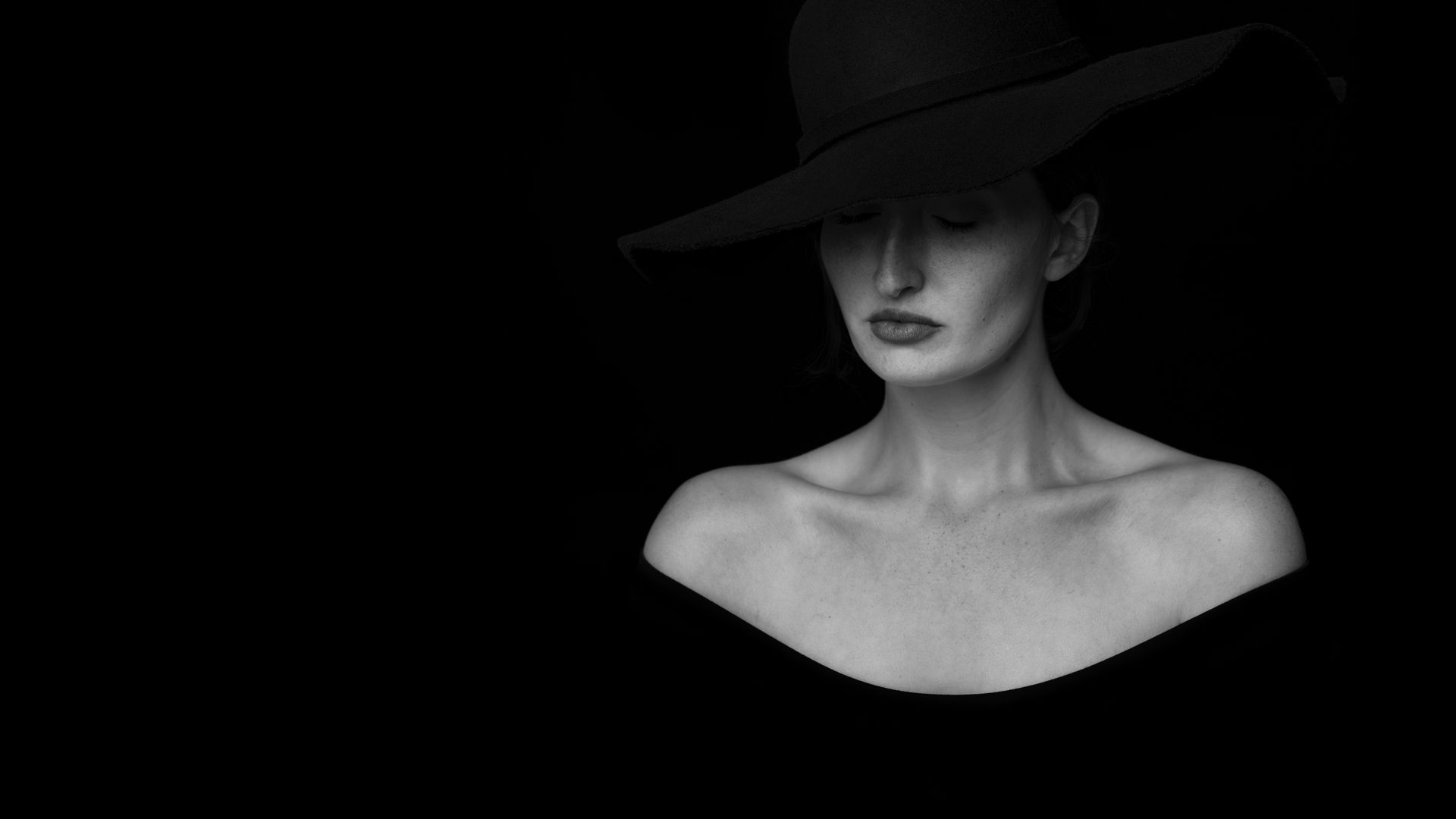

How to Edit Photos in Adobe Photoshop , Adobe Photoshop latest version 2026 revolutionizes photo editing with advanced AI photo editing features and professional tools. Creators can easily adjust lighting, colors, and composition using Adjustment Tools, Crop, and Brush tools. AI-powered features like Generative Fill, Harmonize, and Content-Aware Fill make removing objects, replacing backgrounds, and enhancing images fast and precise. Photoshop 2026 also allows seamless integration of layers, text, and graphics for professional-quality visuals. Whether for photography, social media, or marketing, mastering these tools ensures perfect edits. The combination of classic editing and AI innovation makes Photoshop 2026 essential for modern creators.
1 Step : How to Edit Photos in Adobe Photoshop , Open Your Photo
- Launch Photoshop 2026 and go to File > Open.
- Choose the photo you want to edit.
- Use Layers to keep your edits non-destructive.
2 Step : Crop & Straighten
- Use the Crop Tool to remove unwanted areas.
- Adjust the aspect ratio for social media, prints, or websites.
- Straighten the image using the Straighten Tool within Crop.
3 Step : Adjust Colors & Lighting
- Use Adjustment Tools like:
- Brightness/Contrast – brighten or darken your image.
- Levels & Curves – perfect color and tonal correction.
- Hue/Saturation & Color Balance – tweak colors for professional look.
4 Step : Retouch & Remove Imperfections
- Use Spot Healing Brush and Healing Brush Tool to remove blemishes.
- Use Clone Stamp Tool to replicate textures and remove unwanted objects.
- For complex backgrounds, try Content-Aware Fill to automatically fill selected areas.
5 Step : Use AI Features for Advanced Editing
Adobe Photoshop 2026 includes powerful AI tools:
- Generative Fill – add or replace objects with AI suggestions.
- Remove Tool (AI-powered) – instantly remove items from a photo.
- Harmonize – match colors and lighting between layers automatically.
- Sky Replacement – replace skies using AI to create cinematic effects.
Tip: Use Layers for every AI edit so you can adjust later without losing quality.
6 Step : Sharpen & Enhance Details
- Use Sharpen Tool to enhance details in areas like eyes, hair, or textures.
- Apply Noise Reduction in Filter > Noise > Reduce Noise for smoother results.
7 Step : Add Text & Graphics (Optional)
- Use the Type Tool to add text.
- Combine with Shapes Tool and Brush Tool to create social media graphics or marketing visuals.
8 Step : Export the Perfect Image
- Use File > Export > Export As for web-ready images.
- Choose JPEG or PNG depending on your use.
- For print, export as TIFF with high resolution.
Tools Checklist for Perfect Edit in Photoshop 2026
- Crop Tool – framing & composition
- Adjustment Tools – lighting & color correction
- Healing & Clone Tools – remove imperfections
- Brush Tool – selective painting & masking
- Generative Fill & AI Remove – advanced AI edits
- Sharpen & Noise Reduction – clarity & details
- Type & Shape Tools – add graphics or text
Bonus: Tips for Using AI in Photoshop
- Always work on a new layer before applying AI edits.
- Combine AI features with manual adjustments for realistic results.
- Experiment with different AI models in Generative Fill for unique creative effects.
- Use Harmonize to match multiple images in a composite seamlessly.
🛠️ Selection Tools
Selection tools are used to select specific parts of an image for editing. Popular tools include Marquee Tool, Lasso Tool, Quick Selection Tool, and Magic Wand Tool. These tools help isolate objects, backgrounds, or subjects accurately.
✂️ Crop Tool
The Crop Tool is used to resize, straighten, and improve image composition. It helps remove unwanted areas and adjust aspect ratios for social media, websites, or print.
🎨 Brush & Eraser Tools
The Brush Tool allows painting, retouching, and masking, while the Eraser Tool removes unwanted parts of an image. These tools are widely used in creative editing and photo manipulation.
🌈 Adjustment Tools
Adjustment tools like Brightness/Contrast, Levels, Curves, Hue/Saturation, and Color Balance help enhance colors, lighting, and overall image quality without damaging the original photo.
🖌️ Clone Stamp & Healing Tools
The Clone Stamp Tool copies pixels from one area to another, while Spot Healing Brush and Healing Brush Tool remove blemishes, dust, and skin imperfections smoothly.
🧠 AI & Generative Tools
Modern Photoshop includes AI-powered tools like Generative Fill, Content-Aware Fill, and Remove Tool, making complex edits fast and beginner-friendly.
🔤 Text Tool
The Type Tool is used to add and edit text for posters, banners, thumbnails, and social media graphics.
