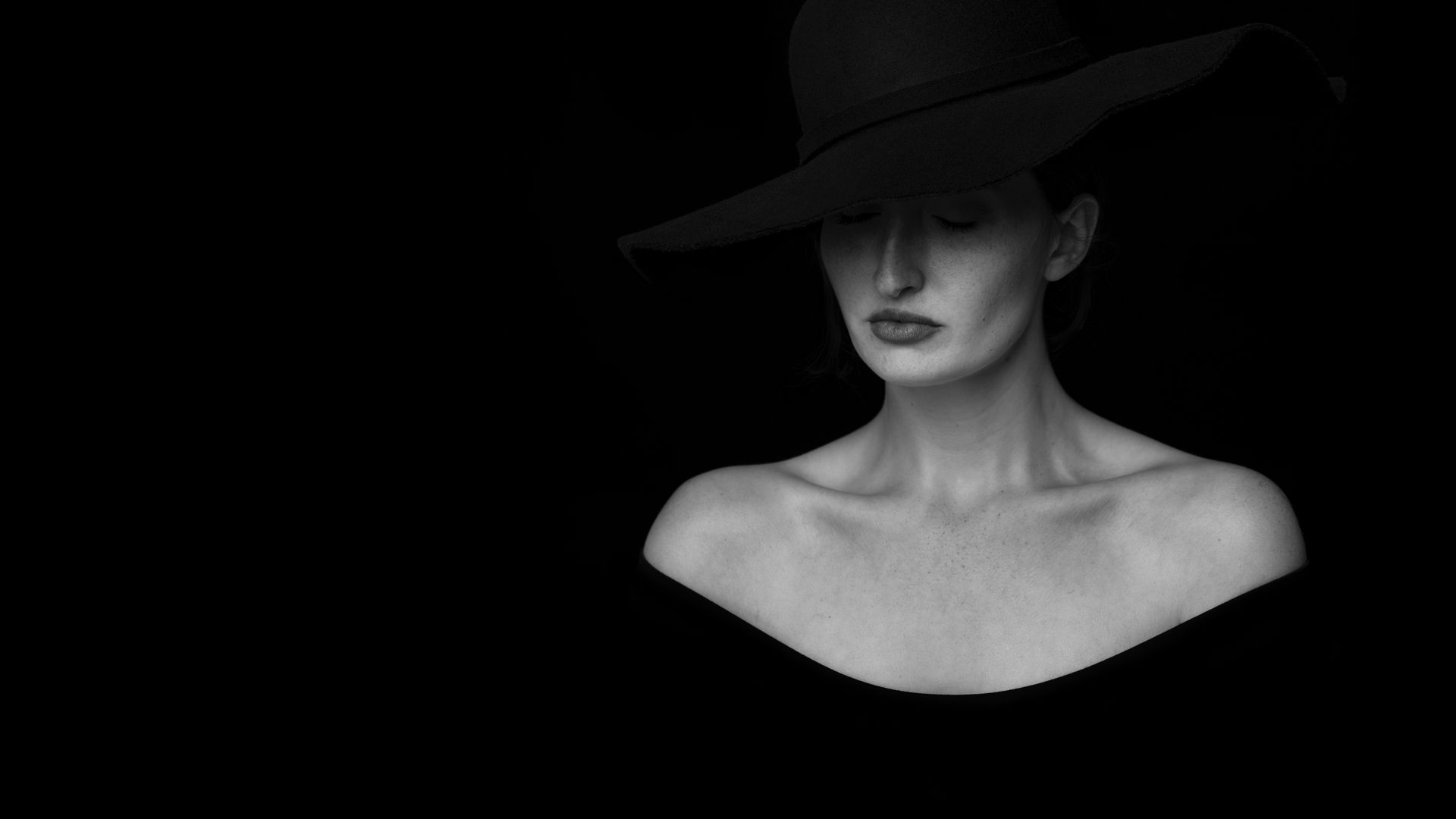

“AI Photo Editing in Photoshop: 7 Powerful Steps for Stunning Results”
7 Useful AI Steps in Photoshop for Photo Editing
Adobe Photoshop has integrated powerful AI tools that simplify complex edits. Here’s how to use AI photo editing in Photoshop effectively:
1. Open Your Image
Start by opening your photo in Photoshop. Make sure it’s in a compatible format like JPG or PNG.
2. Use Generative Fill
Photoshop’s Generative Fill AI allows you to remove objects, fill empty spaces, or add new elements simply by selecting an area and typing a description.
3. Apply Neural Filters
Navigate to Filters > Neural Filters to access AI-powered enhancements like:
- Skin smoothing
- Smart portrait adjustments
- Style transfers
These AI filters automatically improve photo quality.
4. Select Subjects Automatically
Use Select > Subject to let AI identify and select the main subject in your photo instantly. This is perfect for background removal or isolated edits.
5. AI Sky Replacement
With Edit > Sky Replacement, Photoshop AI replaces skies in your photo automatically while keeping realistic lighting and reflections.
6. Enhance Details with Super Resolution
Use AI-powered Super Resolution (via Camera Raw Filter) to upscale images without losing detail — ideal for printing or professional projects.
7. Colorize Black and White Photos
Photoshop’s AI can automatically colorize old black-and-white photos, creating realistic and vibrant results in seconds.
Pro Tip:
Combine these AI features for faster, professional-level edits. With AI photo editing in Photoshop, even complex adjustments can be done in minutes instead of hours.
powerful AI hacks for AI Photo Editing in Photoshop (especially with Generative AI / Firefly)-
🔥 1. Generative Fill = One‑Click Magic
Hack:
Select any area → Generative Fill → leave prompt blank
👉 Photoshop intelligently fills it based on surroundings (great for background cleanup).
✂️ 2. Remove Objects Like a Pro
Hack:
Lasso unwanted object → Generative Fill → type “remove”
Better than Content-Aware Fill for complex backgrounds.
👕 3. Change Clothes Instantly
Hack:
Select clothing → Generative Fill → prompt like
“black leather jacket”
Perfect for fashion edits or profile pics.
🌄 4. Expand Images (AI Outpainting)
Hack:
Crop tool → expand canvas → Generative Fill → leave blank
AI creates realistic extensions beyond the original photo.
🧑🎨 5. Fix Faces Fast
Hack:
Use Neural Filters → Photo Restoration / Skin Smoothing
Then reduce opacity for a natural look (never 100%).
🌤️ 6. Change Background in Seconds
Hack:
Select Subject → Invert selection → Generative Fill
Prompt: “studio background with soft light”
🎭 7. AI Lighting Control
Hack:
Neural Filters → Relight
Add depth and cinematic lighting without manual dodge & burn.
📸 8. Sharpen Low‑Quality Images
Hack:
Camera Raw → Enhance → Super Resolution
Upscales images cleanly using AI.
🧠 9. Better Prompts = Better Results
Hack:
Use descriptive but short prompts
❌ “make it good”
✅ “golden hour lighting, shallow depth of field”
🚀 10. Combine AI + Manual Layers
Hack:
After Generative Fill → add Layer Mask + Soft Brush
This blends AI results seamlessly (pro-level finish).
⚠️ Pro Tip:
AI gives speed. Your creativity gives quality.
Always refine, mask, and color‑grade after AI edits.
